

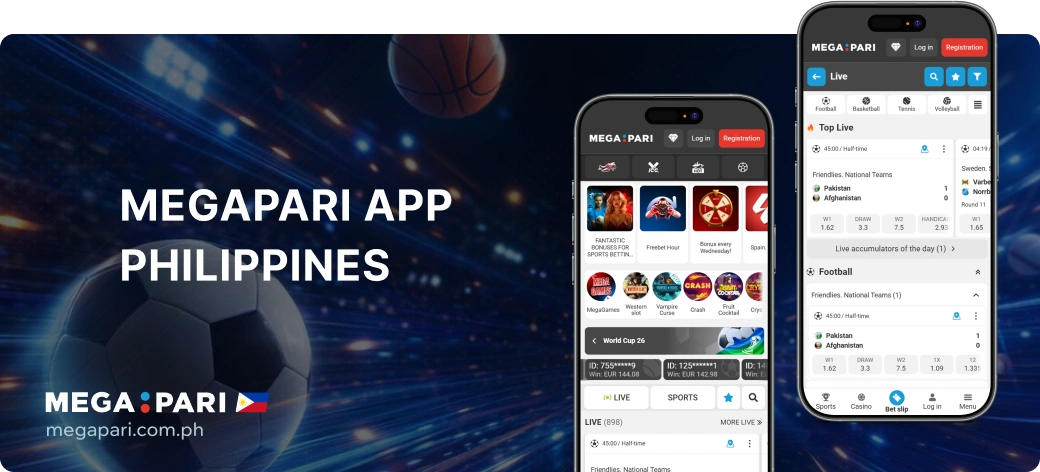
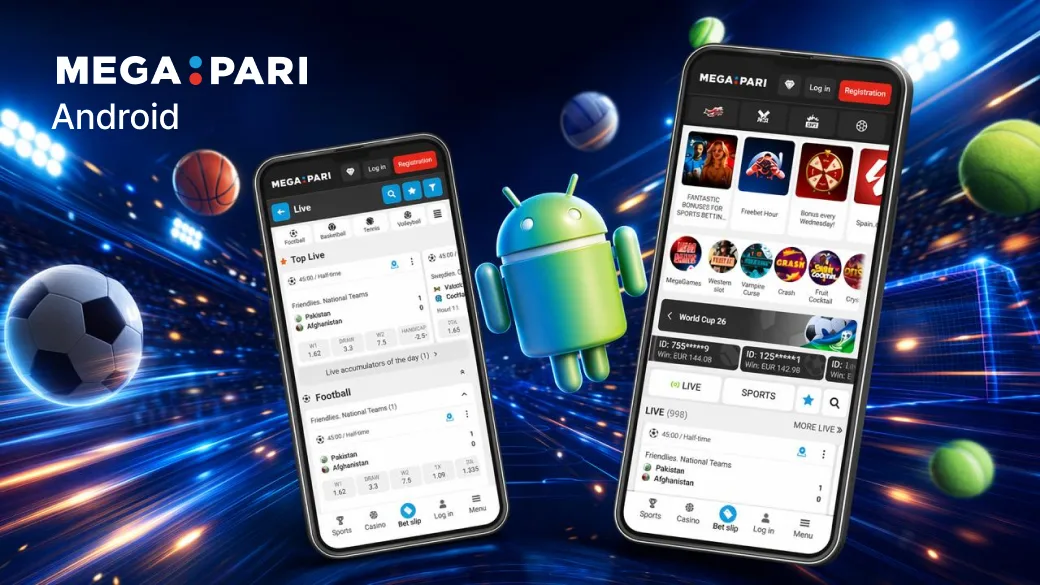
The MegaPari app gives Philippines users four mobile access routes: an Android APK, an iOS application distributed through TestFlight, a progressive web app and the mobile website. All routes connect to the same account, sportsbook, live betting, casino and cashier. The main differences are installation, updates and device compatibility. Android users install a package from the official mobile page; iPhone and iPad users can choose TestFlight or browser-based access.
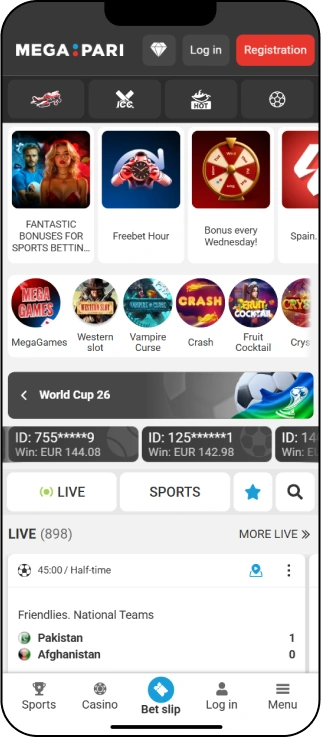
MegaPari App Overview
| Platform | Access method | Requirements | Updates | Main limitation |
|---|---|---|---|---|
| Android | Official APK from the mobile page | Android 7.0+; RAM 2 GB+; 100–200 MB free; quad-core 1.4 GHz+ | Install the current official APK | Manual installation permission is required |
| iPhone and iPad | Native app through TestFlight | iOS 12.0+; RAM 2 GB+; 150–250 MB free; A10 Fusion+ | Managed through TestFlight | Distribution is through TestFlight |
| PWA | Add to Home Screen | Compatible browser and internet connection | Web content updates when opened | It remains a web app, not a native iOS build |
| Mobile website | Compatible web browser | No installation required | Updates load in the browser | No installed application or dedicated app icon |
The Android APK and TestFlight build are installed applications. The PWA is a browser-based shortcut that can open in a standalone-style window, while the mobile website stays inside the browser. Login, betting, casino rounds, balances and payments require an internet connection on every route.
MegaPari is operated by VDSOFT&SCRIPT DEVELOPMENT SRL under Anjouan licence ALSI-112310012-FI5. The licence is an international authorisation and does not by itself determine the platform’s legal status in the Philippines.
How to Download the MegaPari APK
Choosing the access route before installation prevents common cross-platform errors. The APK is only for compatible Android phones and tablets. It is not an iPhone file, a desktop installer or a PWA package. Users who do not want to install software can open the same service through the mobile website, while Apple users can choose TestFlight or Safari-based access.
Android users can start the APK download with the Download App button on this page. Save the entire package before opening it, and avoid third-party mirrors, renamed files or modified versions shared through messages.
Finding the Current APK Download
Use the current download route on this page rather than an installer already stored on the phone. An older file in the Downloads folder may no longer match the available release. If a transfer is interrupted, delete the partial package and download it again.
Android Installation
- Click Download App and wait for the APK to finish downloading.
- Open the completed file from the browser notification or Downloads folder.
- If Android asks, allow that browser or file manager to install unknown apps.
- Return to the APK, approve installation and wait for completion.
- Open MegaPari and remove the temporary installation permission when it is no longer needed.
The “unknown apps” label describes software installed outside the device’s usual app store; it does not verify a file. The source therefore matters. If Android reports that MegaPari is already installed, obtain the current official APK and open it over the existing version instead of creating a second installation.
Android Requirements
| Requirement | Minimum |
|---|---|
| Operating system | Android 7.0 or later |
| Memory | 2 GB RAM |
| Free storage | 100–200 MB |
| Processor | Quad-core 1.4 GHz or faster |
Insufficient storage, an unsupported Android version, a partial download or missing installation permission can prevent setup. Freeing space will not resolve an operating-system or processor incompatibility.
MegaPari on iPhone and iPad
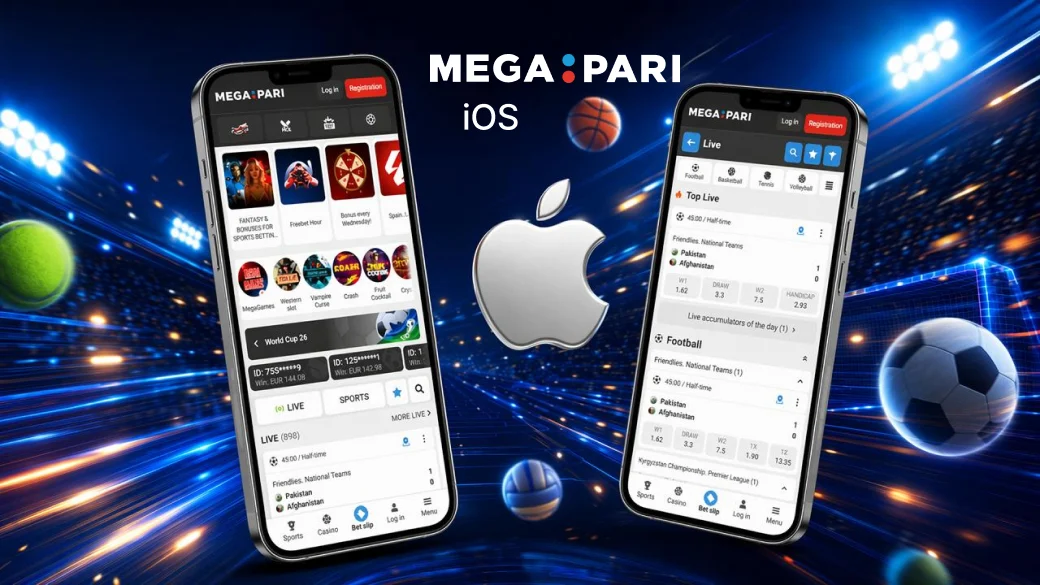
The iOS routes share the same account but behave differently on the device. TestFlight installs a native build and manages its availability and updates. The PWA stores a home-screen launcher for the web service. Direct browser access adds no icon and keeps navigation inside Safari. Before choosing, consider available storage, whether the device is personal or shared, and whether an installed application is preferred.
Apple users can access MegaPari through the native iOS build distributed by TestFlight, the official PWA or the mobile website. An Android APK cannot be installed on an iPhone or iPad.
TestFlight Access
Install TestFlight from the App Store, then follow the official MegaPari distribution route shown for the iOS build. Installation and update notices inside TestFlight apply to that native release channel. The stated requirements are iOS 12.0 or later, 2 GB RAM, 150–250 MB free space and an A10 Fusion processor or newer.
PWA and Mobile Website
For PWA access, open MegaPari in Safari, use the Share menu and choose Add to Home Screen. The new icon launches the web service but does not install the TestFlight application. The ordinary mobile website needs no setup: open it in a compatible browser and sign in.
The PWA is convenient for regular home-screen access, while the website is suitable for temporary or installation-free use. Clearing browser data may end the current session or require the PWA shortcut to be created again.
How to Update the App
An update should preserve the existing account because credentials and balance are connected to the profile, not to a particular installer. Record the correct login method before replacing an app on a device that has saved credentials. If Android refuses an update over the existing version, confirm that both packages came from the same official route before removing anything. Uninstalling can clear local settings and require a fresh login.
Each access route uses a different update method. Keeping those routes separate prevents an Android package from being mistaken for an iOS or browser update.
| Route | Update method | If the update fails |
|---|---|---|
| Android APK | Download and install the current official APK over the existing app | Delete an incomplete installer, download it again and restart the device |
| iOS app | Open TestFlight and install the available MegaPari update | Check the TestFlight invitation or distribution route and available storage |
| PWA | Close and reopen the shortcut so the current web service loads | Refresh Safari or remove and recreate the shortcut |
| Mobile website | Reload the page in the browser | Clear only the relevant site data, then sign in again if required |
Do not use an old saved APK or an external mirror as an update source. Replacing the access method does not require a new account.
Registration and Login in the App
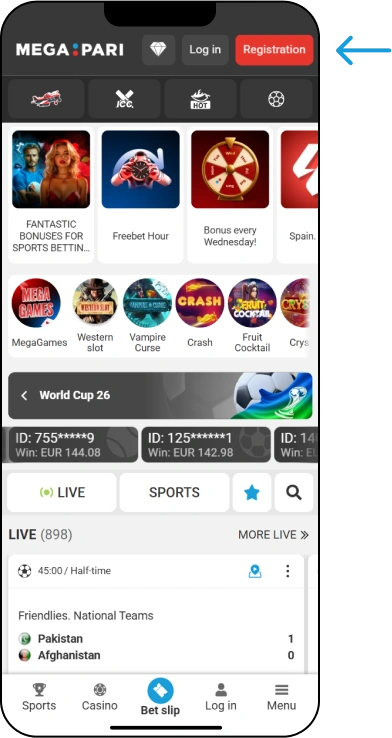
Device access and account registration are separate steps. Installing the application or saving a PWA icon does not create an account automatically. Likewise, switching from the mobile website to an installed route does not justify a second profile. The one existing account should remain the reference point for login, verification and payment activity.
The Android app, TestFlight build, PWA, mobile website and desktop site use the same account system. Create one profile and use its credentials across supported devices.
Account Creation
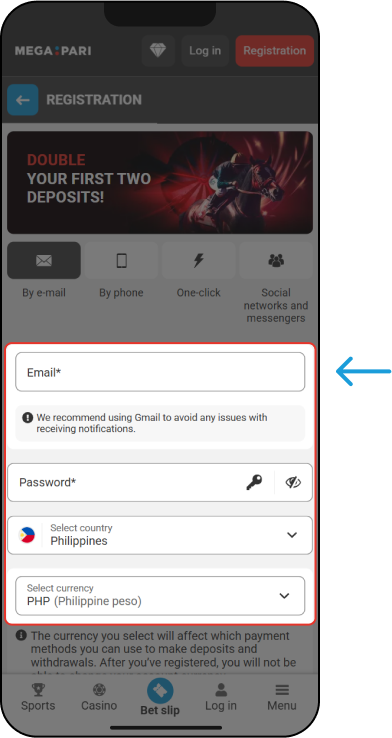
Open the selected route, choose registration and complete the fields currently displayed. Enter accurate personal and contact information, select PHP when that option is offered and review the form before submitting it. Consistent information reduces problems during account recovery and payment verification.
For the full account flow, see the MegaPari registration guide for the Philippines.
Login and Password Recovery
Enter the credentials connected to the existing profile. Check spelling, unwanted spaces and the selected sign-in method before repeating a failed attempt. If the password is unavailable, use the recovery option shown on the login screen and follow the instructions sent through the registered contact route.
Functions Available in the MegaPari App
Navigation is adapted for smaller screens, so menus may be collapsed behind icons or tabs that differ from the desktop layout. Before submitting a bet or transaction, reopen the relevant summary and verify the selected event, market, stake, currency or destination. A compact interface does not change the underlying product rules or account conditions.
Sportsbook and Live Betting
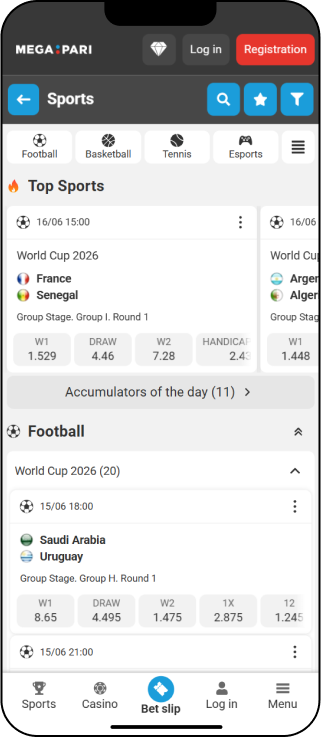
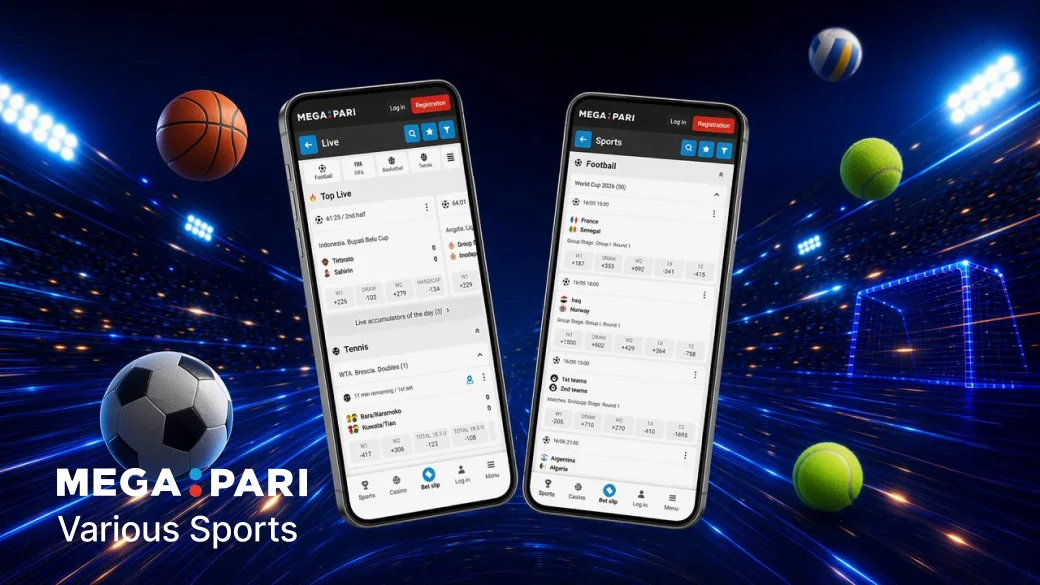
The mobile sportsbook covers scheduled sports, live betting, cricket, esports and virtual sports. Events already in progress are separated from pre-match listings. Users can open a market, add selections to the bet slip, review the stake and odds, and check active or settled bets from the same session. Event and market availability changes with schedules and account access.
Casino and Account Tools
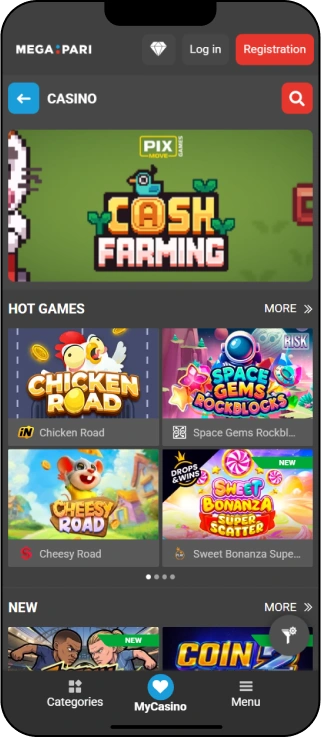
The gaming area includes Casino, Live Casino, MegaGames, Bingo, TV Games and Scratch Cards. Category tabs and search controls help users move between formats without separate product-specific apps. The account area provides profile settings, transaction status, bonus information and any verification requests shown for the profile.

Mobile Deposits, Withdrawals and Verification
Payment values in the table describe the supplied method groups and EUR-equivalent withdrawal ranges. They are not guaranteed PHP amounts for every user. Conversion, provider availability and the account’s verification status can affect what appears in the cashier. The live cashier remains the final source for the current minimum, maximum, fee and processing estimate before a transaction is submitted.
The signed-in mobile cashier shows the payment categories available for the account and selected currency. MegaPari Academy states that the platform supports more than 50 payment methods and 100 currencies globally, but the actual options, limits and timing shown for a PHP account take priority.
| Method group | Deposit use | Withdrawal range and timing | Important condition |
|---|---|---|---|
| Cards | Available when displayed | EUR 50–5,000 equivalent; up to 7 days | Provider charges and payment ownership checks may apply |
| E-wallets | Available when displayed | EUR 10–10,000 equivalent; up to 15 minutes | Use an eligible wallet belonging to the account holder |
| Bank transfer | Available when displayed | EUR 20–20,000 equivalent; 1–5 days | Bank charges and verified recipient details may apply |
| Local payment systems | Availability depends on the cashier | Current limits are shown in the account | Do not assume a specific local method is always present |
| Prepaid vouchers | Deposit availability depends on the cashier | Normally not a matching withdrawal route | Review redemption and bonus conditions before payment |
| Cryptocurrency | Available when displayed | EUR 10–50,000 equivalent; up to 15 minutes | Network charges and the selected asset must be checked |
Deposits and withdrawals are separate cashier actions. Before confirming a transaction, check the method, amount, currency and destination. Withdrawals generally return to the same or verified payment details. Keep the transaction reference and avoid submitting a duplicate request while an earlier one remains pending.
Verification may require identity, address or payment-method information. Upload clear, current files only through the request shown in the account. Incomplete or inconsistent information can delay completion.
Security and Safe Installation
A genuine-looking logo or familiar app name is not enough to verify a download. Check the page address, the route used to reach the file and the permissions requested during installation. An application should not require a user to send a password or one-time code to another person. If a request appears outside the normal account flow, close it and contact support through a recognised channel.
- Download the Android APK only through the official mobile route on this page.
- Install TestFlight from the App Store and use the official MegaPari distribution route for iOS.
- Keep the native iOS build separate from the browser-based PWA.
- Use a unique password and enable two-factor authentication when it is offered.
- Never disclose passwords, payment details or one-time codes to someone offering remote installation help.
- Grant APK installation permission only to the browser or file manager handling the package, then remove it after setup.
- Complete AML, KYC and payment-ownership checks only through the recognised account process.
Browser and PWA access avoid APK installation, but users should still check the site address before entering account or payment information. Modified applications and imitation login pages can capture credentials or alter expected behaviour.
Fixing Common App Problems
Start with the smallest reversible check: confirm the connection, reopen the affected route and review the current status. Move to a fresh download, shortcut recreation or password recovery only when the basic check does not work. Keep screenshots and transaction references for persistent account or cashier issues, but exclude passwords and security codes from support messages.
| Problem | Checks | Next action |
|---|---|---|
| APK will not download | Connection, browser storage and available device space | Delete a partial file and start a fresh download from this page |
| APK will not install | Android version, free space and permission for the opening app | Enable the temporary permission, reopen the complete APK and restart if needed |
| Login fails | Credentials, spaces, sign-in method and connection | Use password recovery through the registered contact route |
| PWA is outdated | Safari page and saved shortcut | Refresh the page or recreate Add to Home Screen access |
| Payment is pending | Cashier status, provider record and transaction reference | Do not duplicate the request; complete any displayed account check |
| Notifications do not appear | Device, application and browser permissions | Review the settings for the access route being used |
Troubleshoot the affected route first. Reinstalling everything or creating another account can add new problems without resolving the original one.
App vs Mobile Website
The installed routes are best for regular access from a personal device. The mobile website is the simplest option on a shared or temporary device because it does not require installation. The PWA provides a home-screen icon while remaining browser-based.
| Feature | Installed app | PWA | Mobile website |
|---|---|---|---|
| Android access | Official APK | Supported through the browser | Supported through the browser |
| iOS access | Native build through TestFlight | Add to Home Screen | Open directly in Safari |
| Installation | Required | Shortcut only | None |
| Updates | Current APK or TestFlight update | Loads current web content | Loads current web content |
| Storage | Uses listed app requirements | Browser data and shortcut | Browser data |
| Account | Same MegaPari account | Same MegaPari account | Same MegaPari account |
FAQ
Is the MegaPari APK available in the Philippines?
Yes. Android users can obtain the official APK through the Download App button on this page. Wait for the complete file and install it through the Android prompt.
Can I use MegaPari on an iPhone?
Yes. The native iOS build is distributed through TestFlight. The official PWA and mobile website provide browser-based alternatives for iPhone and iPad.
How do I update the MegaPari app?
Android users install the current official APK over the existing app. Apple users check TestFlight, while PWA and mobile-web users refresh their browser-based access.
Why will the APK not install?
Common causes include a partial download, insufficient storage, an unsupported Android version or missing permission for the browser or file manager that opens the APK.
Can I deposit and withdraw in the app?
Yes. Use the signed-in cashier and the payment methods displayed for the account. Available routes, limits and verification requirements depend on the selected method and currency.